For area, rubble, avalanche and cadaver search, RescueDogs provides planning and recording tools. Teams can draw areas, mark persons and important points, share areas, import GPX data and analyze searches later.
Prepare search areas
The planner helps find the right location, draw and save an area. Location search, coordinate search and 3-word addresses help the team get to the right map section quickly.
Draw
Corner points, lines and area details make assignments clearer.
Import
GPX files can be used as search areas or additional tracks.
Markers
Persons, situation points and special places stay documented. Use the existing point tool to add a navigation point and open Google Maps from it.
Share
Organizations can reuse areas together.
Map work for search dog teams
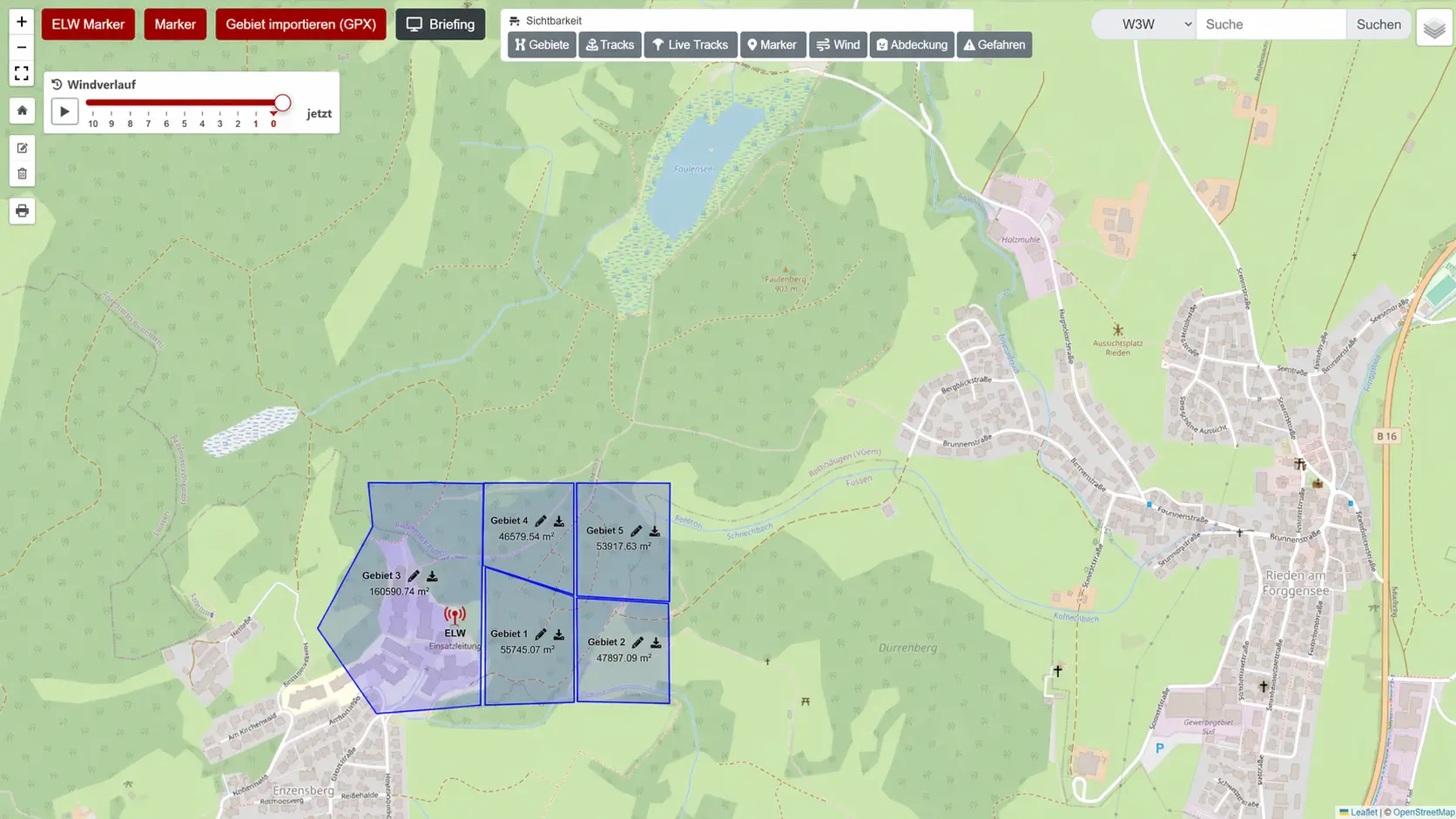
Different map layouts, terrain views and contour lines help assess paths and terrain. In the mission map, active teams, tracks, weather, wind and markers come together.
Review after training or mission
Recordings can be opened, rated and commented. Several searches can be displayed together to review coverage, development and search behavior.
Start with one search area
- Prepare the area
Draw a training area in the search area planner or import existing GPX data.
- Record the search
Use the area in area search and mark important people and points directly on the map.
- Review together
Look back at the search route and document observations for the next training step.
Already part of a team? Ask your administrator for an invitation code or QR code. You do not need to create a second organization.
Prepare your maps before training
Premium offline maps can be downloaded in advance with Mapbox. Other map providers may cache viewed tiles; this is not a reliable offline download. Check your prepared area in airplane mode before heading out.
Before your first session
Do I need an organization to get started?
No. You can start with your own trails and recordings. Join your existing team later using its invitation code or QR code.
Can I prepare maps for poor reception?
With Premium, download Mapbox offline maps or import compatible MBTiles/PMTiles raster packages. Check your area in airplane mode before leaving.
A circle when it fits your training area
Choose circle drawing and set its centre. Set the size with an edge point or enter a numeric radius. The existing polygon tool remains available. Circle drawing works in the search area planner and all six area-based disciplines: area, rubble, avalanche, cadaver, object and drone search. Add planned targets, finds, false alerts and assistance to the training record when useful.
Turn areas into clear search assignments.
Use search areas for preparation, missions, training, analysis and documentation.